First: sign in, open your sport, and check DK / FD + the slate. Features depend on your membership.
START HERE · FROM CSV TO FINISHED LINEUPS
Follow these five steps.
Use a computer for this CSV workflow. If the selected slate already has lineups, you can use that pool without running your own sim.
Get your entries file from DraftKings.
On DraftKings, go to My Lineups → Edit Entries. Select the sport and slate, then download the entries CSV for the contests you already entered. Save it on your computer—usually in Downloads.
Use the file listing your contest entries, including Entry ID and Contest ID. A player salary list or projections CSV won’t tell the builder which entries to fill. You don’t need to open or edit this file in Excel.
Open NFL or MLB, then click the Lineups tab. Select DK and the matching slate. At the top of Lineups, click the orange Load Entries button. In the file picker, choose the entries CSV you just downloaded.
Load Entries is the upload button. Portfolio is beside it.
You should now see your entry count. If you loaded 20 contest entries, confirm it says 20 before continuing.
STILL ON LINEUPS → PORTFOLIO
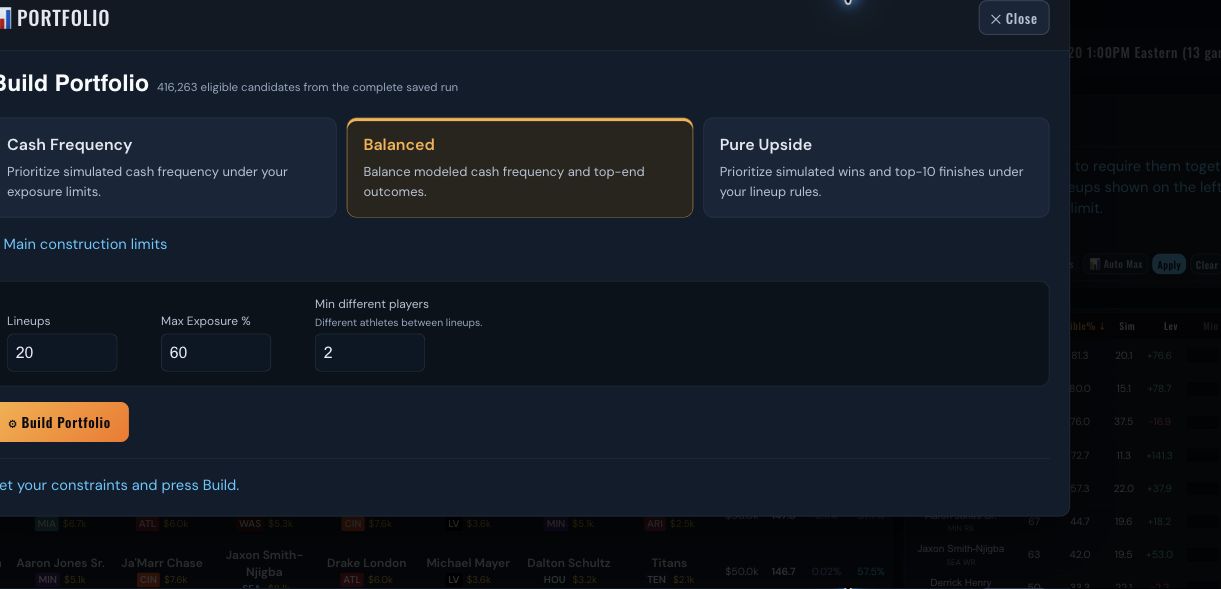
Click Portfolio. Choose a model. Build.
Click the orange Portfolio button beside Load Entries. Your loaded contests carry into the builder. Choose one of its model cards, then click the Build button.
NFL says Build Portfolio. MLB’s consumer builder says Build followed by your chosen model’s name. If it says Pick a track first, click a model card first. You can leave optional player edits alone for your first build.
Wait for the completed result. Check that the number built matches the number requested. Fix any build error before continuing.
INSIDE THE COMPLETED PORTFOLIO
Your finished lineups are here. Click Export.
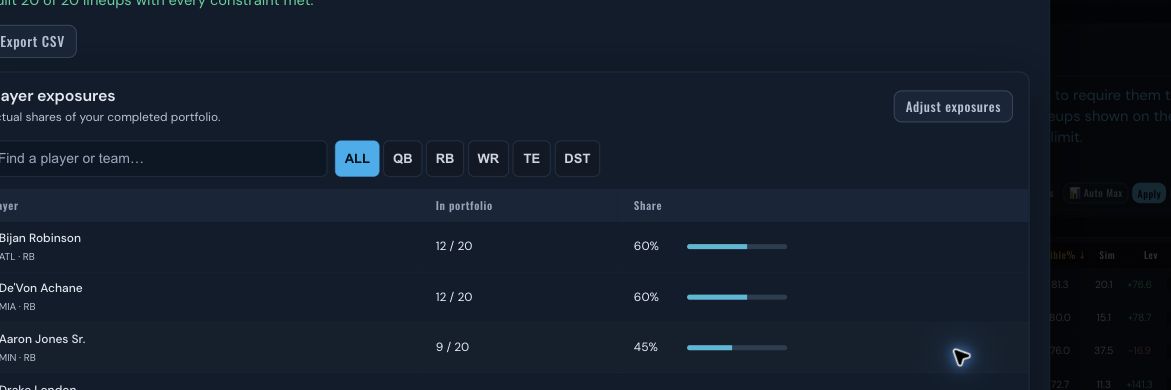
Stay in the Portfolio window. Once the build finishes, it shows your selected lineups and final player exposures. Review that set, then click its export button:
NFL / DK: Export CSV
MLB / DK: Export to DraftKings CSV
FanDuel with entries loaded: Export FD Entries
NFL example: this button downloads the finished portfolio.
The new CSV goes to your browser’s downloads. Use this newly exported file for the next step. The Lineups table’s separate CSV button downloads the browsing list; it does not retrieve your completed Portfolio.
BACK ON DRAFTKINGS
Upload the finished file and confirm your entries.
Return to My Lineups → Edit Entries → Upload CSV on DraftKings. Select the new file from Splash Play. Check DraftKings’ confirmation and look at your contest entries to make sure the intended lineups are in place.
Downloading from Splash Play doesn’t enter or update contests by itself. Even if an export opens DraftKings in a new tab, you still need to upload the file there.
Using FanDuel instead?
Start with your FanDuel contest entries CSV, and select FD plus the same slate in Splash Play.
NFL: on Lineups, click Load FD Entries, choose your file, then open Portfolio.
MLB: on Lineups, click Load FD Entries to open the builder. Inside it, click Load FD Entries and choose your file.
Build, check the result, and click Export FD Entries. Upload the new file through FanDuel’s CSV entry-editing workflow and confirm the updated entries there.
I don’t have an entries CSV yet.
You can still browse the pool on Lineups and favorite candidates. To fill existing contest entries, download their entries CSV from your DFS platform first. MLB’s DraftKings consumer Portfolio needs that file to know your contests and entry count.
You can use a published pool. If lineups are already loaded for your slate, you can start there. You don’t need to run your own simulation first.
02
SIMS
Research before you choose.
Check the platform and slate. The same game can have different salaries and roster rules on DK and FD.
Use the current results, or run your own sim if available. After changing projections, run again to include those changes.
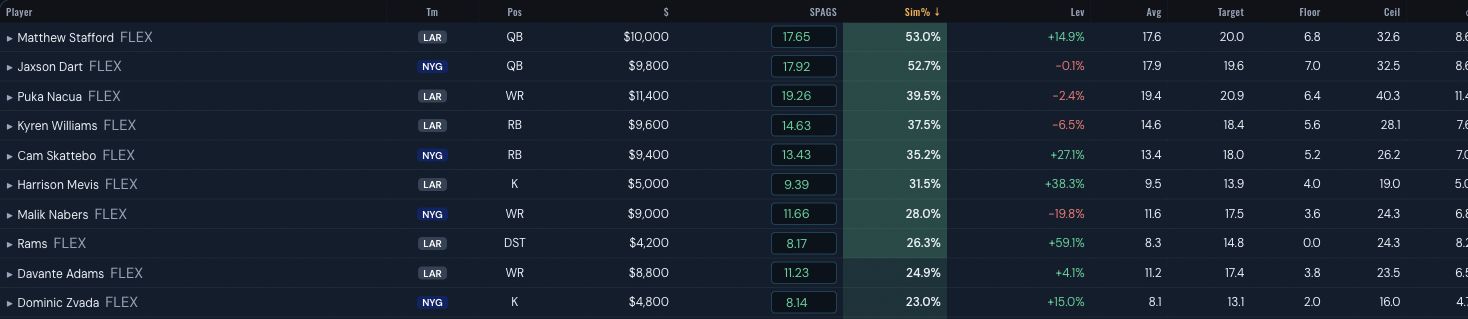
Read the outcomes. Floor and ceiling describe a range. Sim% describes simulated lineup usage; it is not a promise of your final exposure.
NFL example. Tap a screenshot to enlarge. Results shown are an example, not today’s picks.
SPAGS is the projection board. Stats / Matchups help you research players. Recap looks back at completed games.
03
LINEUPS · THE MANUAL ROUTE
You can make the picks.
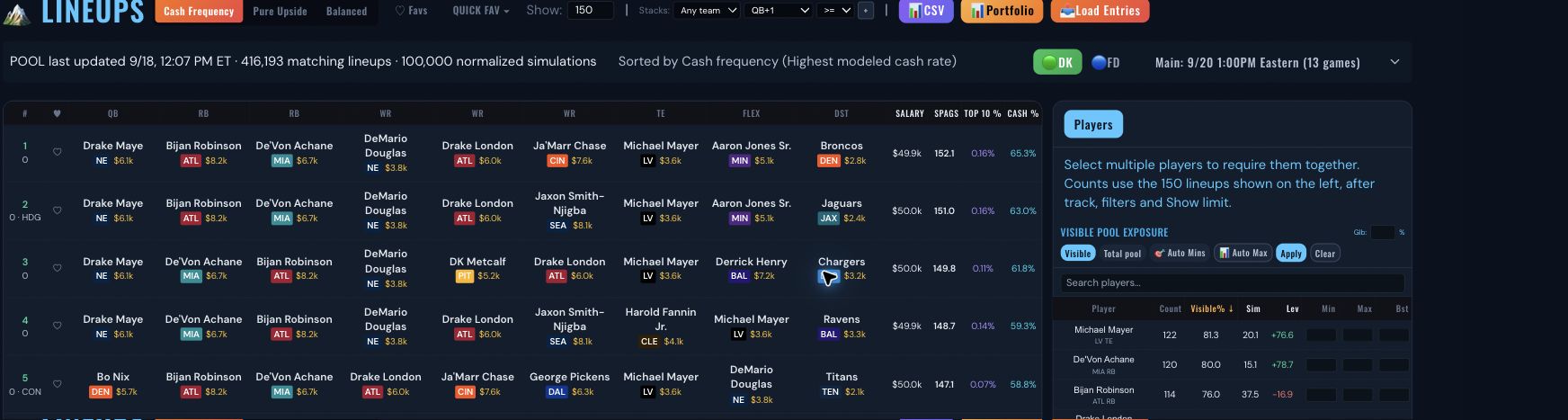
The Lineups page is a valid way to select lineups. Start with a model, then shape the list to your preferences.
Model tabs change the order. Show changes the size of the visible set. The heart marks a favorite.
Choose Cash frequency, Pure upside, or Balanced. Cash frequency emphasizes modeled cash rate. Pure upside emphasizes modeled wins and top-10 finishes. Balanced combines cash and upside scores.
Set Show to the number you want to inspect. Player and stack filters narrow the available candidates.
Set Min, Max or Bst, then press Apply. Check the new count and exposure percentages. Any unmet rule appears above the list.
Favorite lineups yourself, or use Quick Fav. Applied limits and boosts affect automated selection. Review your favorite set before exporting: its exposures can differ from the visible list.
Quick Fav differs by sport. NFL replaces the favorite set. MLB consumer Quick Fav replaces its previous automatic picks and keeps hearts you added by hand. If your applied rules can’t be met, it keeps your existing favorites and tells you why.
A different sort or boost changes selection priority. The displayed projections and simulation percentages stay the same.
04
PLAYER CONTROL
Exposure means “how many of mine?”
6 / 20
30% exposure
A player appears in 6 of your 20 lineups. Count them once per lineup, including captain.
Lineups controls
Control
What it does
Example
Min
Requests at least this share of the selected set.
30% of 20 = at least 6 lineups.
Max
Limits a player’s share. An individual Max overrides Glb for that player.
40% of 20 = at most 8 lineups.
Glb
Sets the default maximum for players without their own Max. Applies when changed.
60 = a 60% default maximum.
Bst
Changes priority within the chosen ranking. Positive favors; negative reduces priority. Press Apply.
+100 is a preference, not 100% exposure or a projection increase.
Blank / 0
Blank removes your override. Max 0 excludes the player. Min 0 makes no minimum request.
Clear a field, then Apply, to remove its old setting.
Minimums round up to whole lineups; maximums round down. With 7 lineups, a 30% minimum needs 3 appearances, while a 30% maximum allows 2.
Read the right percentage
Visible / Exp% counts the displayed lineups. NFL’s Total pool counts the full eligible pool. Sim% is a model result. Portfolio exposure counts the finished book.
Check the final set
Tight rules or filters may leave too few candidates. A warning names unmet limits. Relax a rule, widen the pool, or change the lineup count. Exports are checked against applied limits using the actual exported count.
Do my Lineups settings carry into Portfolio?
NFL: applied player minimums and maximums are shared. The Lineups Glb setting and Bst preferences stay on Lineups; review the builder’s own global maximum.
MLB: Portfolio has separate player limits and boosts. Set them in the builder, then rebuild. Favorites and the visible list do not define the Portfolio candidate pool.
Whichever route you use, inspect the completed set before downloading.
05
PORTFOLIO · THE COMPLETE SET
Let it build. Keep control.
Use Portfolio when you want a set chosen together under your rules. You can still decide who gets more or less exposure.
Open Portfolio from Lineups. Confirm the platform and slate first.
Load your entries CSV on Lineups first. Click Load Entries (or Load FD Entries), choose the file, and verify the count. See the upload walkthrough above. MLB’s DK consumer builder needs entries loaded; other builders may also let you choose a count without a file.
Choose a model and set the rules. Set the global maximum and minimum different players. Use the builder’s player and stack controls for your preferences.
Build, then review. Check “built” versus “requested,” player exposures, stacks, and any shortfall. After an edit, rebuild to apply it.
The builder’s settings govern the complete book. This 20-lineup example is illustrative.Check the finished book, then use its export. Edit exposures and rebuild if you want a different mix.Choose your primary stack mix
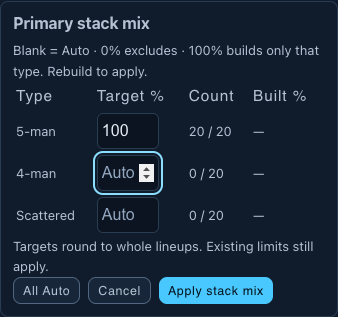
In Portfolio, find Stack exposures and click Primary stack mix beside Clear/Reset stack limits.
Enter the percentages you want. Leave the rest on Auto.
Click Apply stack mix, then Build or Rebuild. Review the completed percentages before exporting.
Example: 100% five-man. Apply, then rebuild.
Example: In 20 MLB lineups, set 5-man to 60%. The builder makes 12 five-man lineups and chooses the other 8 from the Auto types. Set 5-man to 100% for all five-man stacks, or 0% to exclude them.
Sport
Primary types
MLB
5-man, 4-man, or Scattered (largest hitter stack is 3 or fewer). A 5–3 counts once as five-man; 4–4 counts once as four-man. FanDuel allows at most four hitters from a team.
NFL Classic
QB + 1 or QB + 2+ same-team WR/TE, each with or without an opposing RB/WR/TE bring-back. No same-team WR/TE is Scattered. These controls do not apply to Showdown.
Percentages count lineups across the whole portfolio, regardless of entry fee. The mix within each contest can differ. Targets round to whole lineups. Auto fills the unassigned share. Your model and other limits still apply. If the requested mix cannot be completed, adjust the mix or other limits; the previous portfolio stays available.
Showdown: total exposure includes CPT and FLEX. Their role limits are separate. Blank keeps the role default; an explicit role maximum of 0 excludes only that role. Captain changes do not count as different players.
AFTER LOCK · UPDATE YOUR ENTERED LINEUPS
How to use Late Swap.
When a game in your selected slate has locked, use Late Swap to update entries you already submitted. The Portfolio button moves into Advanced options. Your existing lineups and exports remain available.
This walkthrough shows MLB on DraftKings. Choose the same sport, platform and slate as your entries. Available tools vary by sport and membership.
DRAFTKINGS → MY LINEUPS → EDIT ENTRIES
Download a fresh entries CSV.
Get the current DraftKings entries file for the slate and contests you want to update. Use the file with your Entry ID, Contest ID, existing players and the player salary list. You do not need to change its headers or open it in Excel.
Use the current file from DraftKings, rather than a projections CSV or a new list of candidate lineups.
SPLASH PLAY → MLB → LINEUPS
Click Late Swap and choose that file.
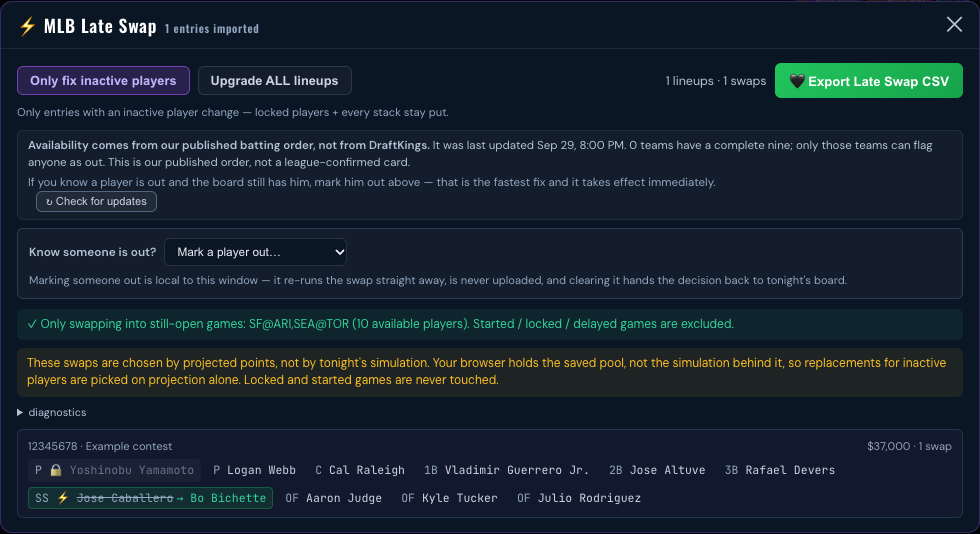
Click the purple ⚡ Late Swap button. Choose your entries CSV in the file picker. The tool loads the latest lineup pool and opens the MLB Late Swap window.
Example MLB slate. After lock, Late Swap is the main action. Portfolio, Load Entries and selection controls are inside Advanced options.
Check the imported entry count. It should match the entries you downloaded from DraftKings.
INSIDE MLB LATE SWAP
Choose what to change. Review the replacements.
Only fix inactive players replaces unavailable players while keeping your other players. Upgrade ALL lineups also looks for gentle, stack-preserving upgrades to unlocked players. Players whose games have locked stay in place.
Example only. Review the changed players and any entries that could not be repaired.
If a player is out and the board has not caught up, use Know someone is out? to mark that player. Use Check for updates to check the posted orders; this refresh does not update projections.
No model or exposure-cap setting is needed here. If a replacement cannot fit the salary or position, the window reports it. A locked inactive player cannot be replaced.
REVIEW → EXPORT → BACK TO DRAFTKINGS
Export the changes and upload them to DraftKings.
Click Export Late Swap CSV. Find the new file in your browser’s Downloads, then upload it through DraftKings → My Lineups → Edit Entries → Upload CSV. Check DraftKings’ result and confirm your intended entries changed.
This downloads the updated CSV. You still upload it to DraftKings yourself.
Splash Play does not submit changes to DraftKings. If DraftKings rejects any row, keep the error and the exported file so we can check that specific entry.
Why is there nothing to swap?
Check the selected slate, the imported entry count, the loaded batting order and whether the affected player’s game has already locked. If an inactive player has not been detected, use Know someone is out?. If every game has locked, no player can move.
I see “cap-respecting repair reached…”
That message comes from Build Portfolio. For entered lineups, return to Lineups → Late Swap and import your current DraftKings entries CSV. If the message appears inside the Late Swap window, send a screenshot showing the surrounding screen.
06
THE LAST STEP
Download the set you reviewed.
Built a Portfolio?
Use the export button inside the completed Portfolio: Export CSV on NFL / DK, Export to DraftKings CSV on MLB / DK, or Export FD Entries with FD entries loaded. See exactly where to download.
Picked on Lineups?
CSV downloads the shown set. Export Favs downloads your favorites. Those research files may include extra columns; use the platform upload option for an entries file.
Does “DK Upload” use exactly the lineups I see?
Do not assume so. MLB puts favorites first and fills remaining entries. With applied Lineups rules, the fill must pass those rules. NFL’s legacy DK Upload can use a separate construction order or a completed Portfolio.
For a clearly reviewed complete book, build and export inside Portfolio. A table CSV and an entries upload file serve different jobs.
Check player and contest counts in the final file.
Upload the appropriate file on DraftKings or FanDuel.
Confirm the platform accepted it and your entries contain the intended lineups.
A download does not submit entries. You still need to complete the upload and confirm it on your DFS platform.
QUICK FIXES
Something look off?
No pool or a permission error?
Confirm the sport, date, slate and platform. Try Reload pool where available. If access looks wrong, sign out and back in. If it continues, send support the error and selected slate.
Fewer lineups than requested?
Check player filters, stack rules, minimums and maximums. A small pool may not support all of them together. Change one restriction, Apply or rebuild, then inspect the count again.
Why didn’t my boost guarantee more exposure?
A boost raises a lineup’s priority. Available candidates, other players’ boosts, limits and lineup rules still matter. Use a minimum when you want a specific share, then check whether the result meets it.
The board changed since the simulation?
The saved run and current projections differ. Run again after your edits, or reload the current published pool. Review the new selection before exporting.
Still need help?
Send the sport, DK or FD, slate, page name, and a screenshot of the error. Include what you clicked and what you expected. Never send passwords or login codes.
What is the difference between DFS projections, simulations and a lineup builder?
A projection estimates a player's fantasy points. Simulations model a range of outcomes, so you can compare floor, ceiling and variability. A lineup browser lets you inspect candidate rosters. A portfolio builder creates a set for your entries, then lets you review player shares and export. Splash Play's VIP membership includes in-app SPAGS projections and simulation results; Apex adds lineup browsing and portfolio building for NFL and MLB.
Load your DraftKings entries CSV into Splash Play's Apex Portfolio Builder, choose a build track and review the resulting lineup set and player exposures. Export the completed entries file, then upload it to DraftKings yourself. The builder helps you turn a slate approach into a full set for your entries; the lineup browser lets you inspect candidates before building.
Log in with the email you subscribe with — Apex access is tied to your subscription email. Discord login still works for the community, but it signs you in at VIP.